
Quick Unity Tips
Image Click Area
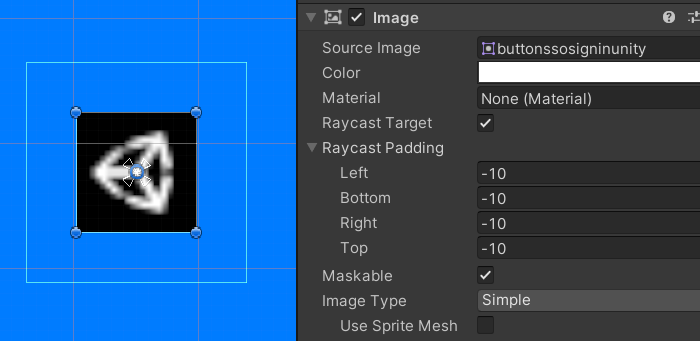
When creating image buttons, it’s sometimes desirable to make the clickable area bigger than the image. One common approach to achieve this is adding an additional GameObject + Image component, setting the desired clickable area size, and making it completely transparent. But we actually don’t need those extra objects. Instead, utilize the Raycast Padding property of the Image component. The editor conveniently shows the bounds via Gizmo (the white square surrounding the image).
C# 9 init keyword
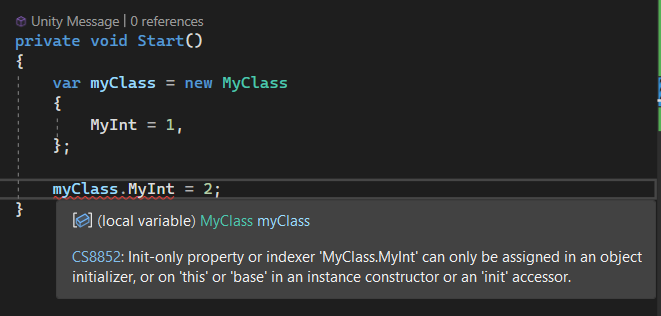
C# 9 introduced the init keyword which can be applied to properties and indexers. This means the value can only be set during object initialization (unlike set). Unity supports C# 9 since 2021.2, but you’ll notice the init keyword doesn’t work right out of the box.
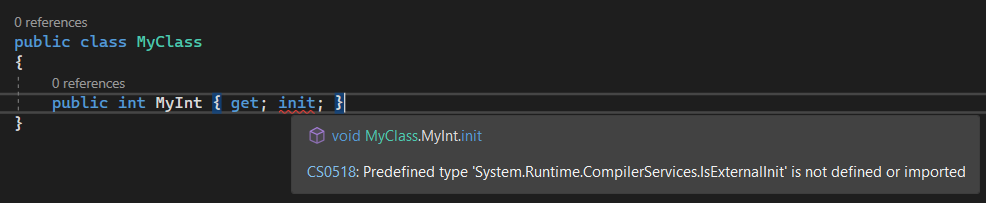
The compiler complains about missing something called IsExternalInit. If you search online, you’ll find a small snippet of code that you can add to your project to fill in the missing piece.
using System.ComponentModel;

namespace System.Runtime.CompilerServices
{
    [EditorBrowsable(EditorBrowsableState.Never)]
    public class IsExternalInit{}
}
Of course, MonoBehaviours can’t benefit from this feature, but still a lot of use cases. Immutable properties ftw!
CallerArgumentExpression Attribute
The CallerArgumentExpression attribute allows us to capture the expression passed to a method parameter as a string. This is particularly useful for argument validation, as it lets us automatically include the parameter name in exception messages without manually specifying it.
[AttributeUsage(AttributeTargets.Parameter, AllowMultiple = false, Inherited = false)]
public class CallerArgumentExpressionAttribute : Attribute
{
    public CallerArgumentExpressionAttribute(string parameterName) => ParameterName = parameterName;
    public string ParameterName { get; }
}
Example usage:
public static class Ensure
{
    public static void NotNull([NotNull] object? obj, [CallerArgumentExpression("obj")] string paramName = "")
    {
        if (obj == null)
        {
            throw new ArgumentNullException(paramName);
        }
    }
}

...

[SerializeField] private TextMeshProUGUI _scoreText;
private void Awake()
{
    Ensure.NotNull(_scoreText);
}
Visual Studio Tracepoints
You know those fleeting logs you scatter around when trying to debug an issue? A couple downsides are
- compilation time every time you need to add or modify a log
- have to remember to remove them when finished (unless they’re useful enough to keep around)
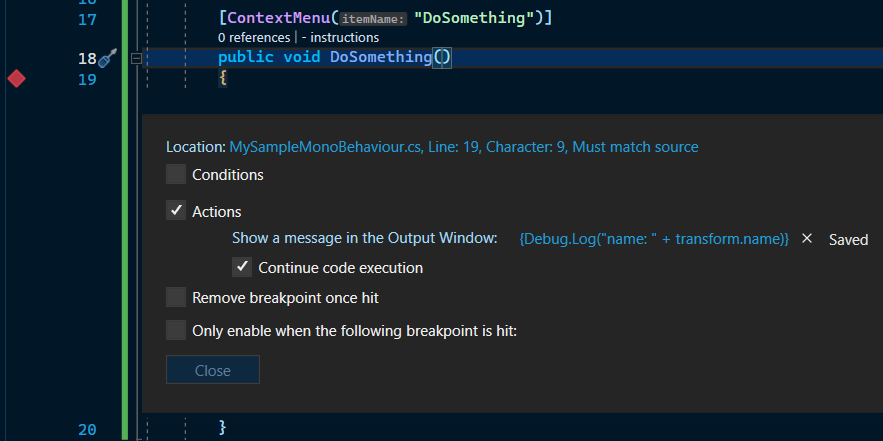
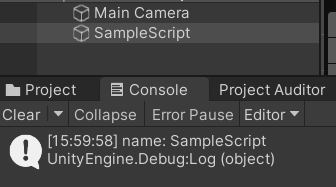
Well, instead of putting those logs in the code, try moving them to a special kind of breakpoint known as a Tracepoint. Its primary use case is printing text to the Visual Studio console, but it also allows us to execute methods by putting the invocation inside a pair of curly braces. We can utilize this by calling Unity’s Debug.Log:
{Debug.Log("value: " + transform.name)}
Unity Collection Pools API
Unity 2021.1 introduced a convenient pooling API which includes the following classes
- CollectionPool<T0,T1>
- DictionaryPool<T0,T1>
- GenericPool
- HashSetPool
- LinkedPool
- ListPool
- ObjectPool
- UnsafeGenericPool
Just bringing it up because I used it recently. Here’s an example of normal usage:
private void OnEnable()
{
    _myClass = GenericPool<MyClass>.Get();
}

private void OnDisable()
{
    GenericPool<MyClass>.Release(_myClass);
}
But if you only need it with a single method, you can use the overload that returns the item back to the pool automatically after disposal.
public int DoSomeWork()
{
    using var _ = ListPool<Vector2>.Get(out List<Vector3> vertices);
    // Do some work
    ...
    return result;
}
Custom Script Templates
In addition to the script templates folder in the installation directory, you can also place custom templates in a “ScriptTemplates” folder within your Unity project. It has to be located at the root of your Assets folder.
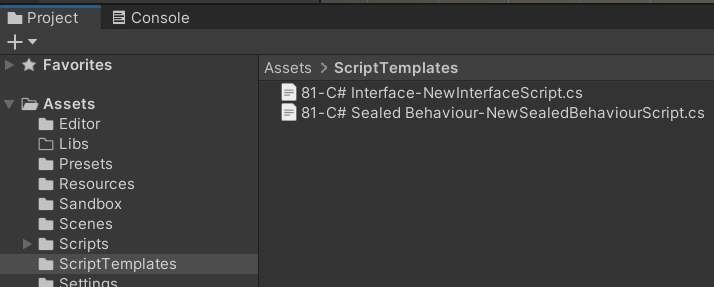
You can include custom templates per project.
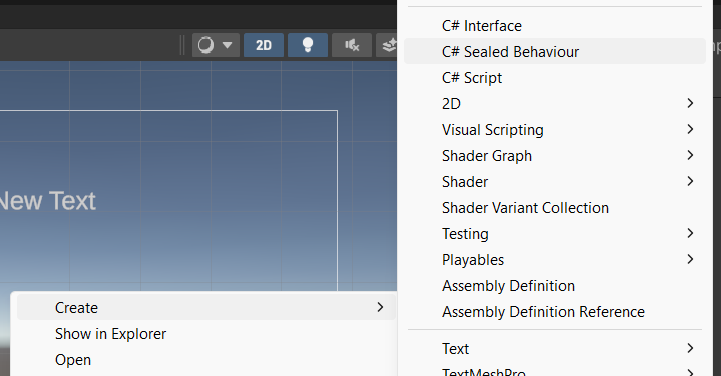
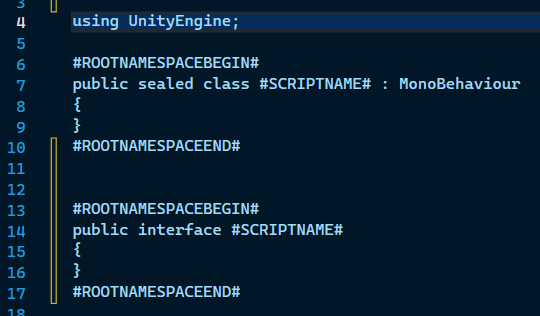
Without templates, one of the first things I do for many new scripts is remove the default Start and Update methods, along with the comments. In the attached screenshots I use an interface template and a “classes sealed by default” template.
Comments